
Squarespace Product Management Guide
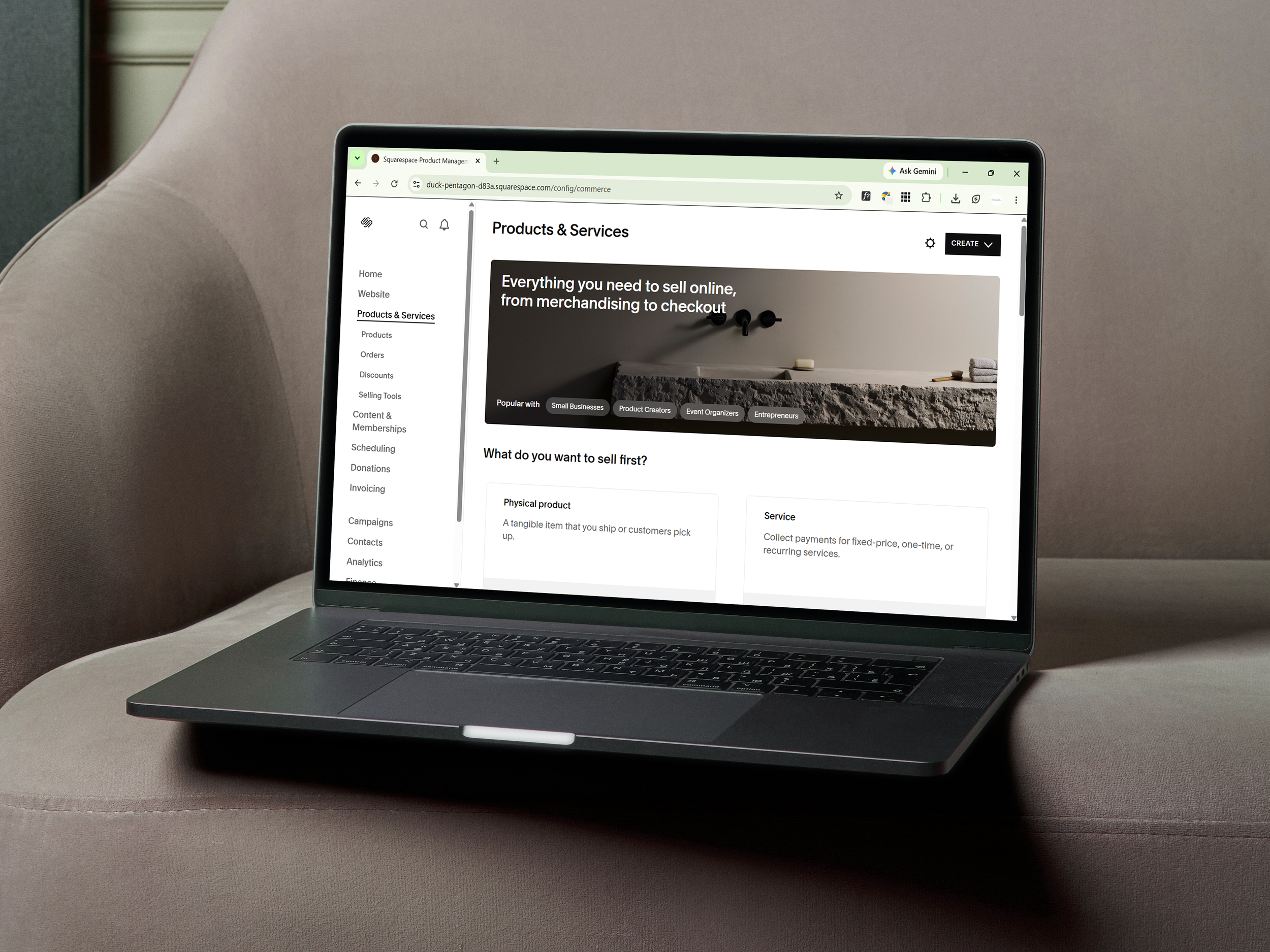
This guide will walk you through adding, editing, organising, and managing products within your Squarespace website. Whether you're adding a new product, updating stock levels, or processing orders, these steps will help keep your online store running smoothly.
Sections:
Logging In
Adding a New Product
Editing Existing Products
Managing Product Images
Managing Product Varients
Inventory Management
Creating Sale Products
Organising Products
Managing Orders
Processing Refunds
Discount Codes
SEO for Products
Regular Store Maintenance Checklist
Need Help?
Logging In
Go to your Squarespace website.
Add /config to the end of your website URL or visit Squarespace.com and sign in.
Enter your email and password.
You will be taken to your website dashboard.
Adding a New Product
Step 1: Navigate to Products
In the left-hand menu, select Website.
Open the page that contains your store, i.e Shop.
Click Add Item.
Step 2: Choose Product Type
Squarespace offers several product types:
Physical Product
Digital Product
Service
Gift Card
Select the appropriate option for your product.
Step 3: Enter Product Information
Complete the following fields:
Product Name
Use a clear, descriptive title.
Description
Include key features, materials, dimensions, or other important information.
Break longer descriptions into paragraphs for readability.
Price
Enter the retail price.
If applicable, add a sale price.
Images
Upload high-quality images.
The first image will usually appear as the primary product image.
Include multiple angles and detail shots where possible.
Categories and Tags
Add categories to group similar products.
Use tags to improve filtering and search functionality.
Step 4: Save
Click Save or Publish to make the product live on your website.
Editing Existing Products
Navigate to your Store page.
Locate the product you wish to update.
Click on the product title.
Make the required changes.
Click Save.
Common updates include:
Price changes
New images
Updated descriptions
Stock adjustments
Sale pricing
Managing Product Images
Best Practices
Use high-resolution images.
Maintain consistent image sizes where possible.
Use natural lighting and clean backgrounds.
Upload multiple images to showcase different views.
Reordering Images
Open the product.
Drag and drop images into the desired order.
The first image becomes the featured image.
Managing Product Variants
Variants allow customers to choose options such as:
Size
Colour
Material
Style
Adding Variants
Open the product.
Scroll to Variants.
Add an option name (e.g. Size).
Enter the available choices.
Assign pricing, stock levels, and SKUs if required.
Inventory Management
If inventory tracking is enabled:
Open the product.
Locate the inventory section.
Enter available stock quantities.
Squarespace will automatically reduce inventory as orders are placed.
Inventory Tips
Update stock regularly.
Check inventory before launching promotions.
Enable low-stock notifications if available.
Creating Sale Products
Open the product.
Enter the original price.
Add a sale price.
Save changes.
Squarespace will automatically display the discount where supported by your template.
Organising Products
Categories
Categories help group similar products.
Examples:
Rings
Necklaces
Earrings
Homewares
Tags
Tags provide additional filtering options.
Examples:
Handmade
Sterling Silver
Birthstone
Gift Ideas
Use categories for broad organisation and tags for specific attributes.
Managing Orders
Viewing Orders
Go to Commerce.
Select Orders.
From here you can:
View new orders
Check payment status
Print packing slips
Fulfil orders
Track customer information
Fulfilling Orders
Open the order.
Add tracking information if applicable.
Mark as fulfilled.
The customer will receive a shipping notification.
Processing Refunds
Open the order.
Select Refund.
Enter the refund amount.
Confirm the refund.
Refunds are processed through your connected payment provider.
Discount Codes
Creating a Discount
Navigate to Commerce → Discounts.
Click Create Discount.
Choose the discount type:
Percentage
Fixed Amount
Free Shipping
Set any restrictions.
Save and activate.
SEO for Products
To improve search engine visibility:
Use descriptive product titles.
Write unique product descriptions.
Add alt text to images.
Include relevant keywords naturally.
Keep URLs short and descriptive.
Example:
Good:
handmade-opal-ring
Avoid:
product-123
Regular Store Maintenance Checklist
Weekly:
Check new orders.
Review stock levels.
Test product links.
Update sold-out products.
Monthly:
Review product descriptions.
Add new photography if needed.
Check discount codes.
Review website analytics.
Quarterly:
Audit categories and tags.
Refresh featured products.
Review pricing and shipping settings.
Need Help?
If you encounter any issues:
Check Squarespace's Help Centre.
Reach out to your web designer (aka me) for assistance with custom functionality or design changes.
Keeping your products organised and up to date helps create a smooth shopping experience and can improve conversion rates and customer satisfaction.
